


Questions about working with software distributed on optical discs
1.1 How to run an application distributed on optical media?
1.3 Do I always have to insert a licensed disc to an optical drive to run the application?
1.4 Do I always have to enter a Disc Key?
1.5 I have entered a wrong Disc Key; I cannot enter the right one.
1.6 I cannot find a licensed Disc Key in the package.
1.7 What do I have to do if a licensed disc check fails?
1.8 If disc check does not begin.
2.1 Do all the applications protected by StarForce install the protection driver?
2.2 How can I check if there is a protection driver installed on my computer?
2.4 How do I know which protection version is installed for the application I use?
2.5 How to update the protection driver?
2.6 How to remove all the protection components from the system?
2.7 Is the protection driver uninstalled automatically? Automatic removal of the protection driver.
2.8 Why is the protection driver installed?
2.9 Does the protection driver conflict with other drivers and applications?
2.10 Do the protection components modify other installed software?
2.11 Does the protection driver influence the hard disk performance?
3.1 What is the DiscFree technology?
3.2Does an application protected with the DiscFree technology use the protection driver?
3.3 How can I use the DiscFree technology?
4.2 Does disc protection prevent operation of other programs installed on a user's computer?
5. I cannot find an answer to my question
1. Disc launch and check
1.1 How to run an application that is distributed on optical media and requires key input?
First of all you should install the application from the disc to run it.
Some applications distributed on discs require Disc Key input.
Please pay attention to the fact that an application may be supplied on several discs. In this case a publisher usually makes an indication on the right side of the discs to show which one of them is the installation disc, and which one is the game disc.
Run the installed application; the required disc should be in the optical drive of your computer. Enter the key and follow the displayed instructions (the key is usually printed on the surface of a disc and consists of capital Latin letters and digits divided into groups by hyphens).
For all the questions concerning disc check, etc., see sections below.
1.2 Methods of disc check
There are two ways to check a licensed disc:
-
with the Disc Key input
You should enter a Disc Key to begin disc check.
-
without the Disc Key input (the Keyless technology)
There is no need to enter a key manually, since it is burned to the disc data area and is read automatically when the application runs.
1.3 Do I always have to insert a licensed disc to an optical drive to run the application?
No!
The StarForce Company meets the wishes of the licensed product purchasers, and has developed several versions of protection that does not require you to insert a disc in a drive every time you wish to run the application:
-
periodic disc check
In this case a publisher or a developer should indicate, while implementing protection, a period during which a disc is not required to run the application.
In other words, you inserted a licensed disc in the drive, run the application, and the disc check succeeded. Then within 10 days, for example, you may insert no disc in the drive, while the application successfully runs and operates.
In particular, this measure has been taken by StarForce to provide more safety to your licensed media.
Please note that it is a publisher or developer who decides, during the application protection, whether to employ these technologies.
1.4 Do I always have to enter a Disc Key?
For the user convenience, StarForce has developed a special technology that allows entering no Disc Key when running a protected application. The technology is called eyless.
-
Running an application protected using the Keyless technology:
Disc check begins automatically after the application runs. In this case a Disc Key is burned to the disc data area and is read automatically.
1.5 I have entered a wrong Disc Key; I cannot enter the right one.
If you have entered a wrong Disc Key for some reason, and realized that after the disc check began do not despair. The key is not saved by the system, and you will be asked to enter a key again next time the application runs.
If you are not prompted to enter a key next time you run the application, you can run the application once more while holding the Shift key*. In this case you will be prompted to enter a key.
1.6 I cannot find a licensed disc key in the package.
Did you look at the surface of the disc itself? Try this! The publishers place the Disc Keys there very often. In other cases a publisher prints a Disc Key in the application User Guide.
All the problems concerning a Disc Key location are solved by the application publisher. Thus, it is quite difficult to predict where a Disc Key is indicated (however, it is usually located in places that are easy to find).
1.7 What do I have to do if a licensed disc check fails?
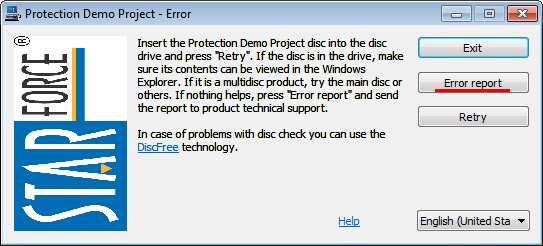
If disc check fails, the following window is displayed (message text may differ from the example below since a publisher can specify his/her own text in message boxes):
-
Press Error report. The system starts collecting data necessary to solve the problem; this data should be sent to the protected product support service. You can interrupt the collection process at any time; however, the information gathered in this case is incomplete, and the possibility to successfully solve the problem reduces a great deal.
-
When data collection is complete, the following window is displayed:
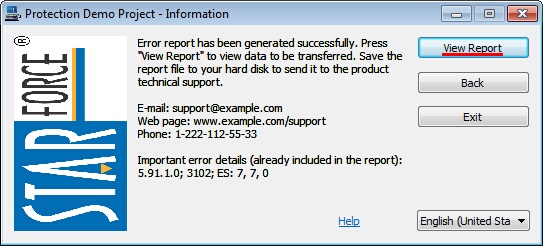
Pressing View Report allows you to view all the information before sending it to technical support service.
-
Save the obtained file in a text format anywhere on your hard disk.
We draw your attention to the fact that the transferred information contains only technical data on your system configuration. This data is necessary to solve the problems concerning the software operation; it contains no personal or secret information such as, for example, password, your personal data, etc.
It is not recommended to modify any data within the file. Should this occur, your query will not be considered.
1.8 If disc check does not begin.
In many cases disc check does not begin for some trivial reasons a wrong disc is inserted or a disc is not inserted at all. Some information that may help you solve the problem yourself is also displayed in the protection message windows.
Sometimes it is sufficient to update the protection driver to solve the problem.
If you still could not solve the problem yourself, send an email to the technical support service of the protected application (not to StarForce customer support). Be sure to attach the text file with the system information. Make some screen shots of the message windows when necessary and attach them to your message as well.
2. Protection driver
2.1 Do all the applications protected by StarForce install the protection driver?
No. A developer or a publisher of an application to be protected decides whether it is necessary to install protection drivers for the application, depending on the required protection level.
2.2 How can I check if there is a protection driver installed on my computer?
You can do it in two ways:
-
using the protect.exe file located in the protected application folder. Run the file and select Check driver status.
-
using the utility for the protection driver update, which is available on our website. When launched, the utility reports that no protection components are found in the system. It means that there is no protection driver in your computer and no protection components will be installed.
If the utility detects some protection components in the system, namely the protection driver, the utility updates it.
2.3 When is the protection driver installed? Does the system always warn about the protection driver installation?
The driver is installed on a user's computer when a protected application runs for the first time, and the corresponding message is displayed *. The user can reject driver installation; however, the protected application will not operate without the protection driver installed in the system.
If you do not use the protected application, the driver does not perform any additional operations and works during the application launch only. While inactive, the driver uses little resources on your computer about 20 KB in RAM.
Different applications are protected at different times; therefore, they can have different versions of the protection driver. If there is a protection driver already installed on your computer, but a message appears suggesting driver installation again when a new application runs, it means that the application is protected using higher protection version. Update driver.
* My system displays no warning about the protection driver installation!
Such warning was not displayed to the users in some older protection versions, which our company was reproached for. Starting with version 4.0, a message with this warning is enabled by default and should be always displayed. However, a publisher can disable displaying this message to a user, when implementing the application protection.
2.4 How do I know which protection version is installed for the application I use?
You can either use SF Helper utility in order to determine protection system version automatically or find the protect.dll file in the protected application folder (the file can have another name, but it always has the .dll extension), right-click it and select Properties. Select Version tab then. The protection version number is in the BuildSignature (or BuildInfo) section.
2.5 How to update the protection driver?
Information about the protection driver update.
2.6 How to remove all the protection components from the system?
Information about protection components removal from the system.
2.7 Is the protection driver uninstalled automatically?
Automatic driver removal service.
Starting from version 4.0, StarForce has implemented a special service to all its products. The service tracks the usage of the protection driver in a user's system. If there is not a single application protected by StarForce on your computer, the service removes all the protection components from the system automatically, and it will remove itself during the next reboot *.
* Why is the protection driver not removed when the protected application is removed?
StarForce protection has the means that allow a publisher or developer to implement, during an application protection, a procedure to remove the protection driver along with the protected application removal. However, it is applied very rarely in practice. That is why our experts have developed and implemented the Service for automatic removal of the StarForce protection driver.
2.8 Why is the protection driver installed?
The driver is necessary for special CD/DVD validation procedures and is used for that purpose only. The driver performs no additional operations and operates only during the protected program launch.
2.9 Does the protection driver conflict with other drivers and applications?
It is probable that the protection driver conflict with programs that emulate optical drives in the system. The emulators are intended to counteract protection, and they use their own drivers. In this case a driver of an emulator can conflict with the protection driver, which results in errors in the system. If such conflicts occur, all the emulator components should be removed from the system.
2.10 Do the protection components modify other installed software?
The protection driver is installed and operates just as any other drivers. It means that it should be registered in the operating system to operate, since it performs a number of low-level operations. As with any professional software, the protection system does not modify other installed software in any way, nor does it have any hidden functionality.
2.11 Does the protection driver influence the hard disk performance?
No! The protection driver does not influence the hard disk performance. You can make sure of that by running any benchmark for a hard disk and compare its results for the operation with loaded and unloaded protection driver.
3. The DiscFree technology
3.1 What is the DiscFree technology?
The unique DiscFree technology allows you to employ the licensed software distributed on optical media, without the use of the optical media to verify the purchased software. In other words, once you bought a licensed disc, you only use it to install and run an application for the first time; then you put the disc away thus providing its mechanical safety. The essence of the technology is that it allows binding the licensed software distributed on optical media to the parameters of an end user computer, so that no licensed disc is required to run the application. In this case the user can use the disc to run the game again at any time, i.e. it is possible to switch binding at any moment.
To perform binding to the parameters of your computer, you need a unique Serial Number provided by a publisher.
In case the previously installed application is not operable, you can take the disc you bought, install the application once more and run it without any problems, at any time. You can also have two working copies of the application, for example, one copy at home, and another copy at work or in your portable computer.
It is a publisher or developer of the program who decides, during the program protection, whether to use the DiscFree technology.
3.2 Does an application protected with the DiscFree technology use the protection driver?
In fact, an application protected with the DiscFree technology employs a protection scheme with binding to computer parameters. As mentioned above (see section Protection driver), if you use a disc, the protection implies the use of the protection driver in some cases, to perform special operations to check the licensed disc . However, when binding is switched from disc to hardware binding, what is in fact provided for by the DiscFree technology, there is no more need to check the disc. Therefore, the driver is no longer required in a user's computer.
If the user decides to run the application with the disc check at first, the protection driver in installed on his/her computer. However, when binding is changed, the driver is no longer required in the system, it ceases operation and is removed, and the corresponding message box is displayed.
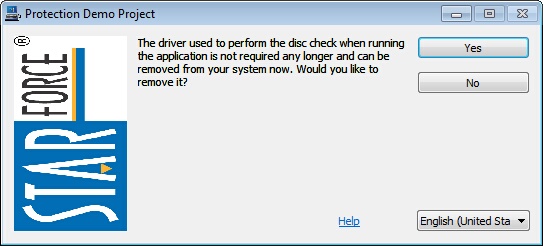
For details, see "Do all the applications protected by StarForce install the protection driver?"
3.3 How can I use the DiscFree technology?
For detailed information on how to use the DiscFree technology, see.
4. General questions
4.1 The protection scheme used for my application does not support Windows XP 64 bit, Windows Vista or Windows Vista. What can I do?
You own an application protected by out-of-date StarForce protection versions. That is, StarForce versions 1.xx, 2.xx, 3.xx for Windows Vista and versions 1.xx, 2.xx, 3.xx, 4.xx, early builds of 5.xx for Windows 7.
4.2 Does disc protection prevent operation of other programs installed on a user's computer?
The StarForce protection does not use procedures that prevent operation of any third party programs. The StarForce software engineers objective is (and always has been) to work with any set of programs installed on a user's computer.
4.3 Does the protection collect any information about the user or the user's computer without notification?
No! Collection of data on user's computer configuration can only be initiated by the user him- or herself, if there is a need to solve some technical problem. Such information is sent to the protected product technical support.
4.4 Does the protection send any information about the user or the user's computer to the Internet without his knowledge?
No!
5. I cannot find an answer to my question concerning disc protection.
* Besides the Serial Number and the Hardware Code, NO personal data are sent to the StarForce activation server during the automatic activation/deactivation.


